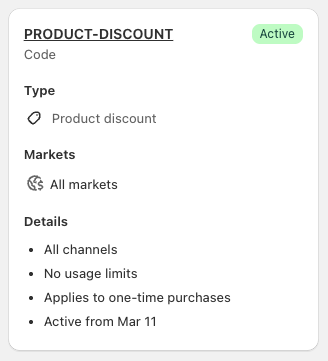

Promotion Configuration
A promotion is the container that controls the customer's storefront experience. It defines who sees your offer, when it's active, and how it appears across your store. The discounts inside the promotion handle the logic and math (ie. what customers must do to qualify and what they receive at checkout.) Both layers work together to create the campaign experience.
What a Promotion Controls
Promotions manage the presentation layer of your campaigns:
Visibility: Who sees the promotion (Public, Private, or Customer Account)
Storefront Blocks: Banners, progress bars, and messaging that appear on your store
Active Dates: When the promotion starts and ends
Discounts: The logic that determines qualification and rewards (applied at checkout)
How Promotions and Discounts Work Together
Promotions control the storefront experience (who sees it, when, and how it appears). Discounts control the checkout logic (qualification, rewards, and validation).
Example:
Promotion: Public visibility, Gift Banner on product pages, active Nov 1-30
Discount: Spend $100 → Free Tote, all customers, applies at checkout
Customers see the Gift Banner throughout November showing their progress. When they reach $100 and check out, the discount applies and the tote is added at $0.
Promotion-Level Settings
Promotion Title
The internal name for your promotion. This is used for organization in Abra and does not appear to customers.
Requirements:
Maximum 64 characters
URL-friendly (no special characters)
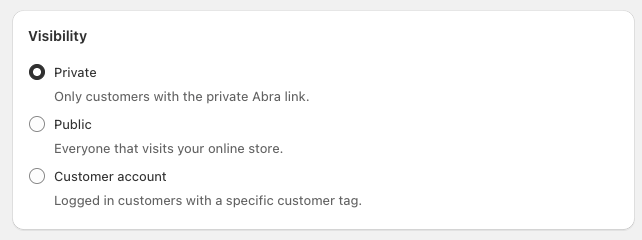
Visibility
Controls who sees storefront blocks and messaging.
Options:
Public – Everyone sees the promotion automatically
Private (Abra Link) – Only customers who click a unique link see the promotion
Customer Account – Only logged-in customers with specific tags see the promotion
Discounts
Add one or more discounts to define the qualification logic and rewards.
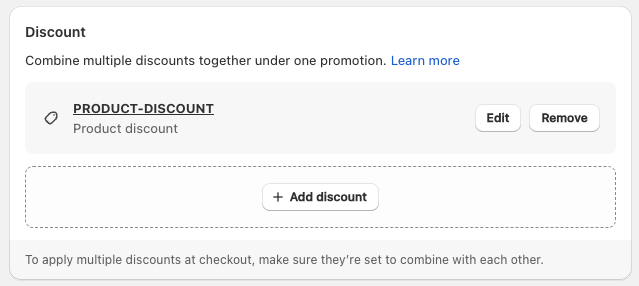
Each discount includes:
Threshold requirements (spend, quantity, eligible items)
Rewards (percentage off, free gift, free shipping, etc.)
Customer eligibility (all customers or specific segments)
Usage limits, markets, channels, and scheduling
You can add up to 5 discounts per promotion.
See Discount Configuration for details on all discount settings.
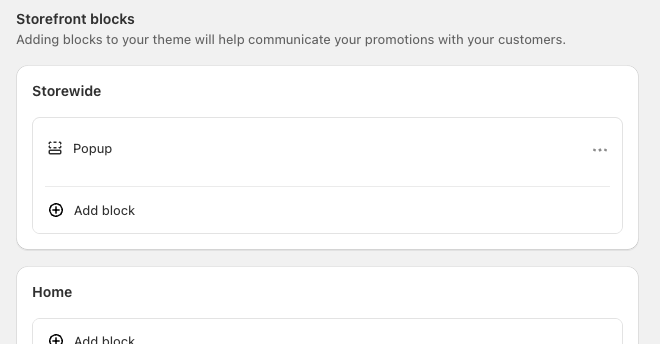
Storefront Blocks
Control how the promotion appears to customers across your store.
Blocks can be placed on:
Product pages
Collection pages
Cart
Customer account pages
Storewide (popups, announcement bars)
Each block displays messaging, progress indicators, or gift selection interfaces.
See Storefront Blocks for block types and placement options.
Active Dates
Set when the promotion starts and ends. By default, the promotion uses the start and end dates from your discount. To set custom promotion dates, uncheck Use discount's start and end dates.
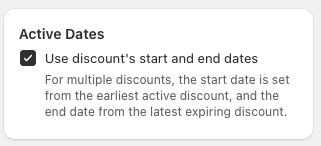
Settings:
Start date/time (required)
End date/time (optional)
If no end date is set, the promotion runs indefinitely.
See Managing Promotion Schedules for scheduling details.
Discount Summaries
After adding discounts, a summary appears showing:
Discount code
Threshold and reward details
Customer eligibility
Active dates
Last sync status with Shopify
Use this section to quickly review and verify your promotion configuration.