Dynamic Strikethrough Pricing
Last updated: September 8, 2026
Dynamic strikethrough pricing shows your customers the discounted prices directly on your storefront while an Abra promotion is active. Eligible products display their original price with a strikethrough alongside the discounted price.
How it works
Dynamic pricing follows the rules of the discount in the activated promotion. Customers only see discounted pricing when they’re eligible for the offer.
Promotions can run without dynamic pricing, but customers may not see the discounted price until cart or checkout.
This is optional. Promotions work without dynamic pricing, but customers won't see discounted prices until checkout.
What it requires
Dynamic pricing requires a schema setup on your store. Abra needs to know which price elements in your storefront should be updated when a promotion is active.
This setup requires a developer to add JSON schema in Abra to match pricing elements in your theme. View our developer documentation or contact our team for assistance.
How to set it up
Step 1: Configure settings in Abra
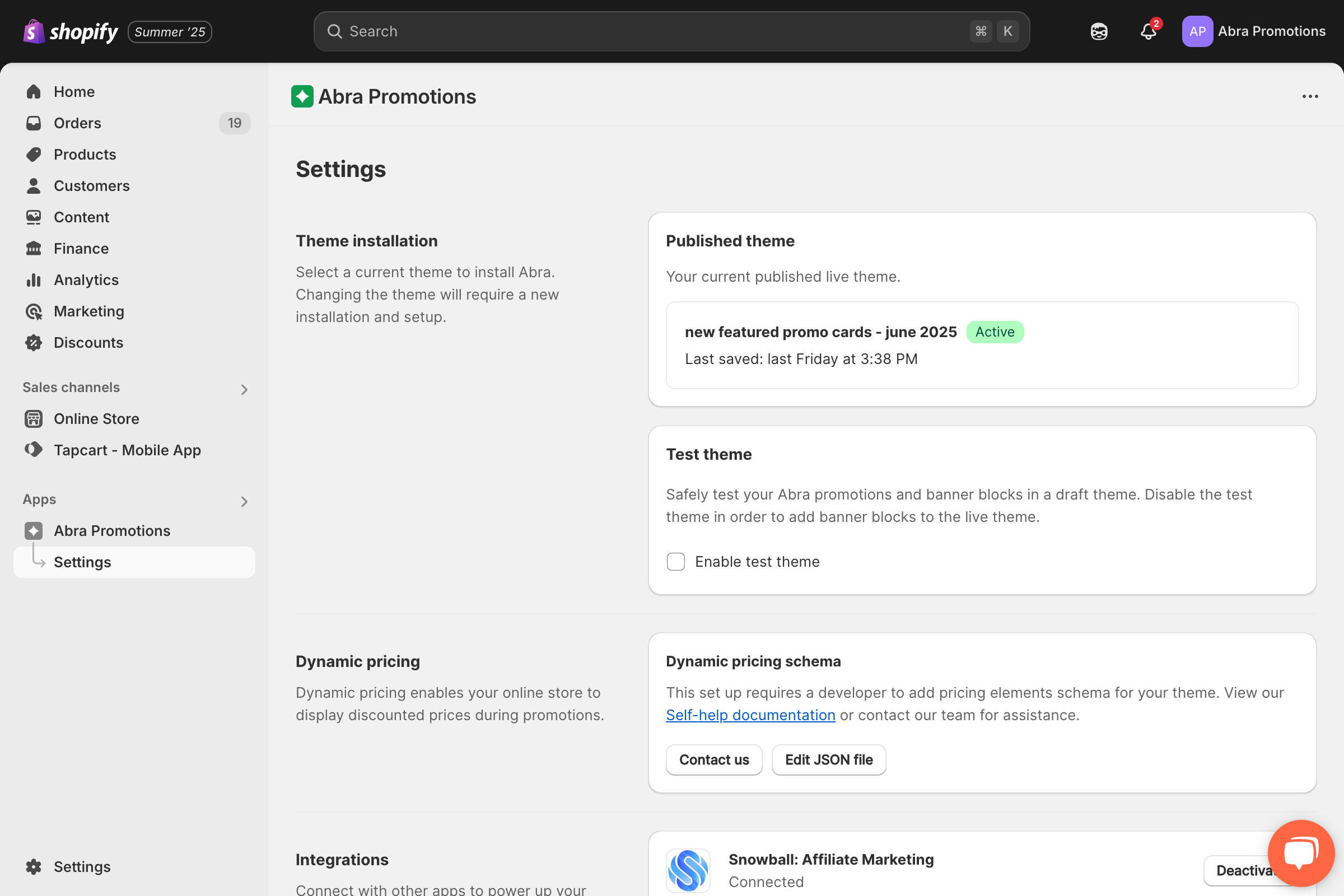
Open the Abra app
Navigate to Settings in the lefthand sidebar
Under Dynamic Pricing, click Edit JSON file
Step 2: Add schema to your theme
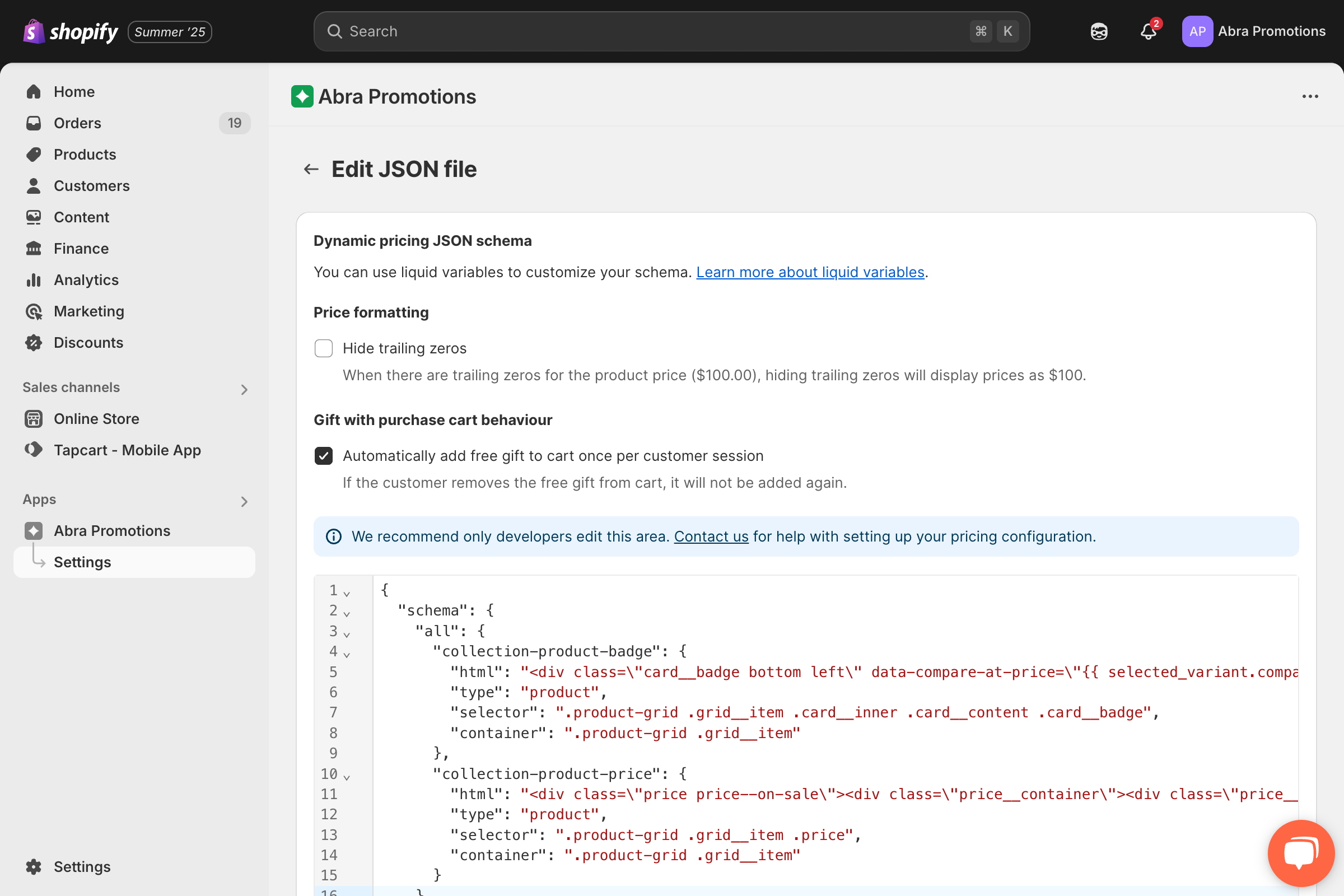
Follow the instructions in Abra's Developer Documentation
Or contact the Abra team at help@abrapromotions.com for setup assistance. The schema tells Abra where to find and update price elements in your theme.
Step 3: Verify it's working
Create a test promotion with a product discount
Add an eligible product to your cart
Check the product page, you should see strikethrough pricing
Remove the item and pricing should revert to original
If pricing doesn't update, double-check the schema configuration.
How it works with visibility types
Dynamic pricing follows your promotion's visibility settings:
Public promotions - All customers see updated pricing
Private (Abra Link) promotions - Only customers who click the link see updated pricing
Customer Account promotions - Only logged-in customers with the required tag see updated pricing