
Customize On-Site Branding
Customize the appearance of Abra's storefront blocks (Popup and Announcement Bar) to match your brand. These blocks appear across your entire store and notify customers when promotions are active.
What You Can Customize
Popup
Floats at the bottom of your store
Notifies customers when a promotion has been applied
Customizable: colors, text, icon, size, placement
Announcement Bar
Appears at the very top of your store, above the header
Notifies customers when a promotion is active
Customizable: colors, text, icon, size
How to Customize
Step 1: Open Theme Editor
In Shopify, go to Online Store → Themes
Click Customize on your live theme
In the left sidebar, scroll to App embeds
Click the chevron arrow next to Abra to expand settings
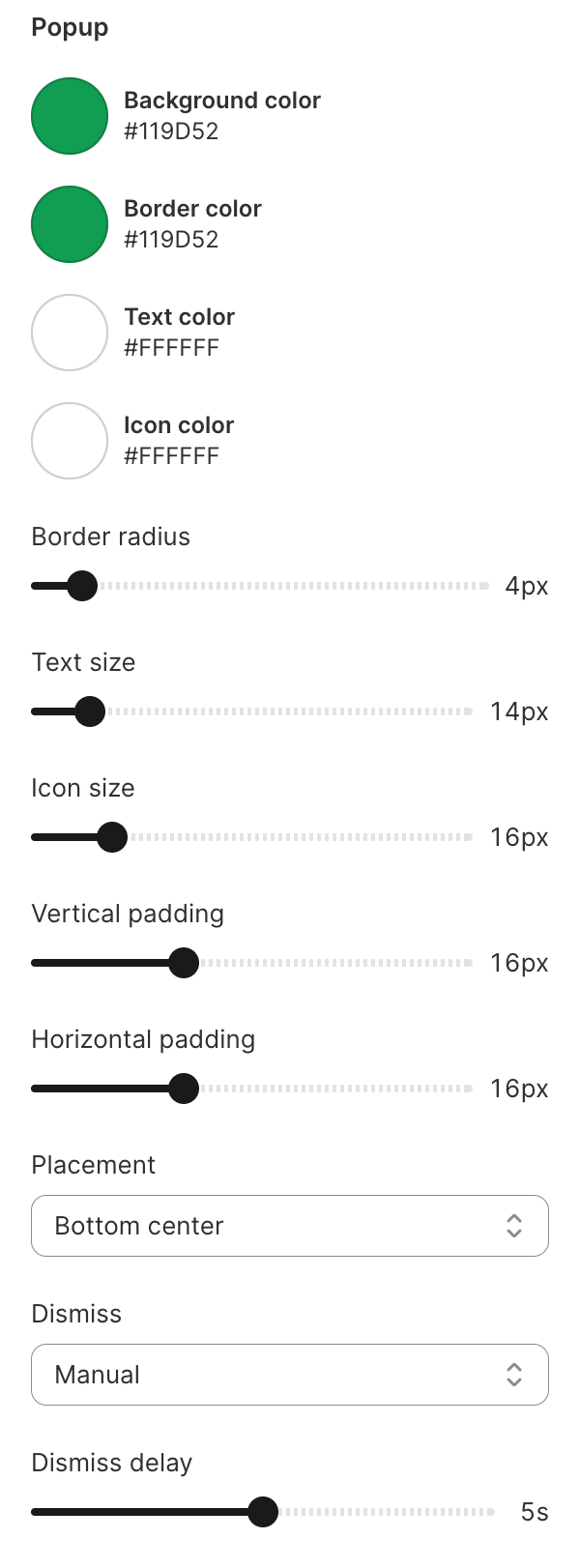
Step 2: Customize Popup
Utilizing Shopify’s preview, you can customize your pop-up before pushing anything live. These blocks will only be visible on your storefront if the promotion they are attached to is live.
Scroll to Popup settings
Adjust:
Colors – Background, text, border
Text – Default message
Icon – Choose from available options
Size – Adjust dimensions
Placement – Position on screen (bottom left, bottom right, etc.)
Hit save.
Step 3: Customize Announcement Bar
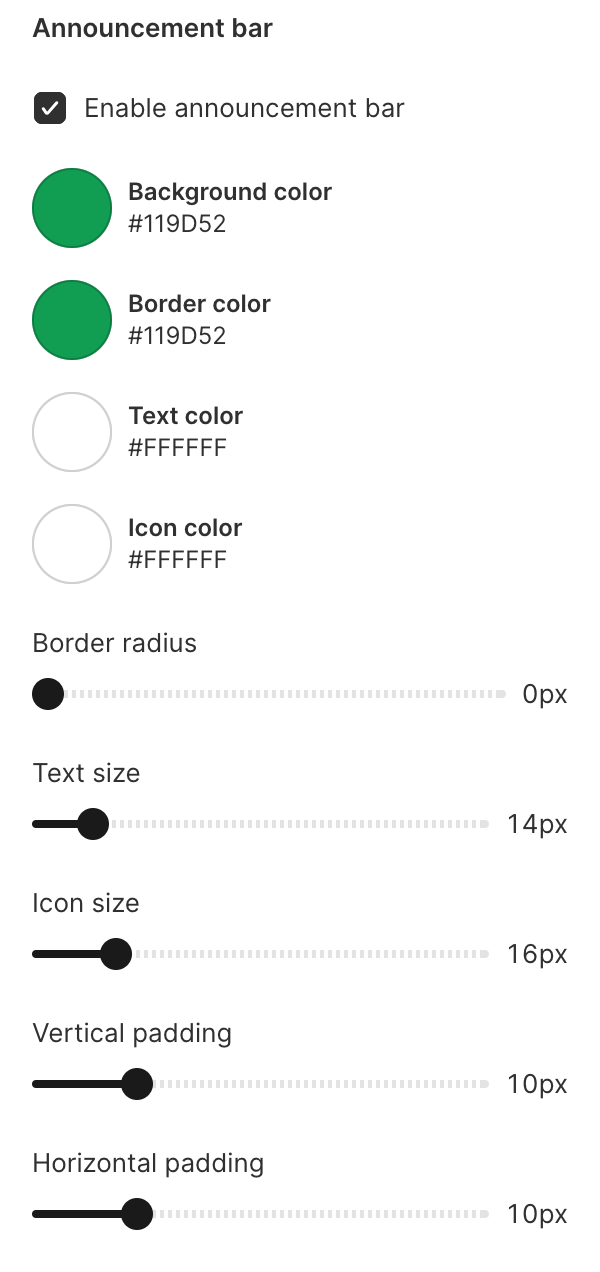
Scroll to Announcement Bar settings
Adjust:
Colors – Background, text
Text – Default message
Icon – Choose from available options
Size – Adjust height
Preview changes in the theme editor
Step 4: Save Changes
Click Save in the top right corner of the theme editor.
When to Customize
Customize these blocks:
After activating the Abra app embed
Before launching your first public promotion
When rebranding or updating your store's visual identity
Note: These are global settings. All promotions will use these styles unless you customize individual storefront blocks per promotion.